Veeam Agent failing to back up to Synology NAS – Invalid Signature

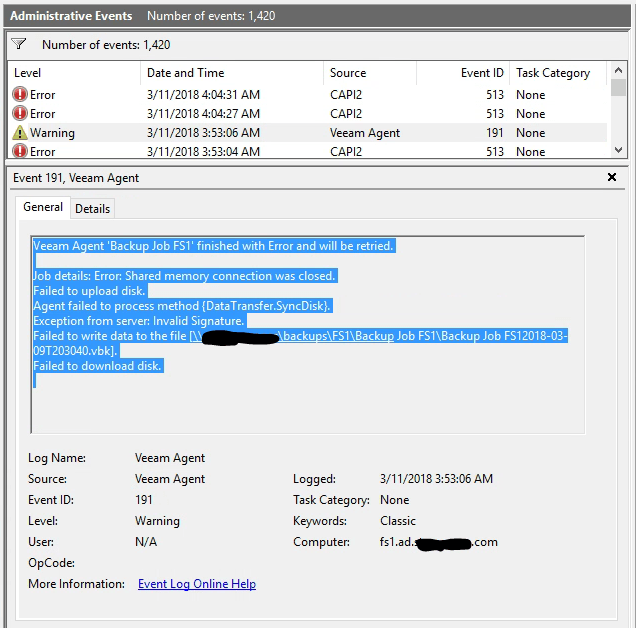
I came across a Windows Server 2016 VM that had Veeam Agent installed for backups. The backup destination was a Synology NAS dedicated for backups running DSM 6.1.5-15254 Update 1 (most current version at the time of writing this). The backups were not completing, and in Event Viewer, each failure would log the following event:
veeamfail1

Veeam Agent 'Backup Job FS1' finished with Error and will be retried.

Job details: Error: Shared memory connection was closed.
Failed to upload disk.
Agent failed to process method {DataTransfer.SyncDisk}.
Exception from server: Invalid Signature.
Failed to write data to the file [\\nas\backups\FS1\Backup Job FS1\Backup Job FS12018-03-11T203041.vbk].
Failed to download disk.

The Invalid Signature part stuck out to me. I started looking into SMB signing and found this Microsoft page: https://support.microsoft.com/en-us/help/2686098/system-error-2148073478-extended-error-or-invalid-signature-error-mess

The article states that some third party file servers are not compatible with SMB signing. The SMB client expects a signed response, but the 3rd party file server never gives it to the client, so the transfer fails.

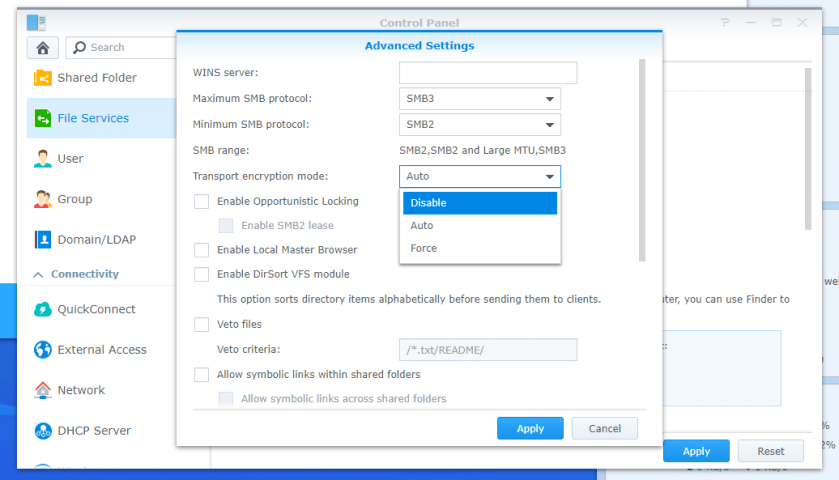
I logged into the Synology NAS, went to Control Panel > File Services > SMB > Advanced settings.
synologysmb1

Transport Encryption mode was set to Force, so I set it to Auto. Now the Veeam Agent backups are completing successfully!

IPv6 DNS record being published on local AD DNS

I recently was working on a domain controller migration from a SBS 2008 to a 2008 R2 machine. I promoted the new domain controller successfully. Before switching the clients to use the IP of the new DC as their DNS servers, I did my usual checks of the DNS records and made sure that the new DC was returning DNS records properly.

I started by running nslookup and setting the server to my new DC. From there, I did a DNS lookup for the local domain name. Normally, this should return the IPs of the DCs. When I did this, the result returned the local IPs of the DCs, but also returned an IPv6 address starting with 2002:. This isn’t good, since any clients trying to update their group policy may resolve the local domain to that IPv6 address, which could cause some problems down the road.

I checked the IPv6 settings for each NIC on both DCs, but none of the NICs had public IPv6 addresses assigned, just link local addresses (starting with fe80:). I did an ipconfig /all on one server, and I found that that IPv6 address was coming from a Microsoft 6to4 tunneling adapter. The IPv6 address that was returned by nslookup was the same as the 6to4 adapter. Now, why was this 6to4 adapter enabled in the first place?

I found this article: https://blogs.technet.microsoft.com/askpfeplat/2013/11/17/ipv6-for-the-windows-administrator-the-2002-6to4-tunnel-address-and-its-impact/

The article states that whenever a machine has a public IPv4 address assigned to its NIC, it will generate a 6to4 tunneling address. Sure enough, the machine that I was working on here had a 2nd NIC which was not connected to the network, and that NIC had a static public IP assigned to its interface. The IP was from this client’s previous internet service and was no longer needed. I changed the IPv4 configuration from static to DHCP. After that, I ran an ipconfig /registerdns from an elevated command prompt, which got rid of that IPv6 address from AD’s DNS. Woo!