
Recently I had to install a new SSL certificate in a server that was an SSTP VPN server. This server is running Windows Server 2012 R2 Essentials. The server was previously configured for Anywhere Access, but we decided to utilize SSTP VPN instead.
I installed the new certificate and private key to the machine’s local certificate store. Upon trying to change the SSL certificate, the RRAS server properties would return the following error:
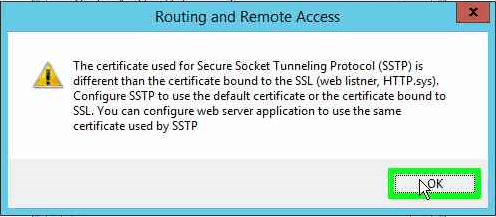
“The certificate used for Secure Socket Tunneling Protocol (SSTP) is different than the certificate bound to the SSL (web listner, HTTP.sys). Configure SSTP to use the default certificate or the certificate bound to SSL. You can configure web server application to use the same certificate used by SSTP.”
After poking around, this seems to be happening due to the old expired certificate being assigned to the IIS Default Web Site. We will need to change that assignment and then we’ll be able to change the certificate that RRAS uses for SSTP connections.
To assign the new certificate that we’ve already installed, we’ll need to open IIS management, and in the left-hand column, we’ll need to navigate to the Server name > Sites > Default Web Site, then click Edit Site > Bindings in the right-hand column. 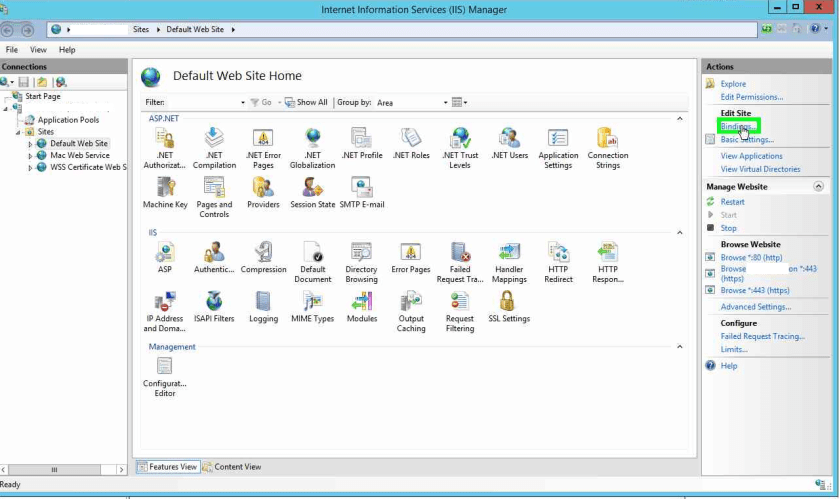
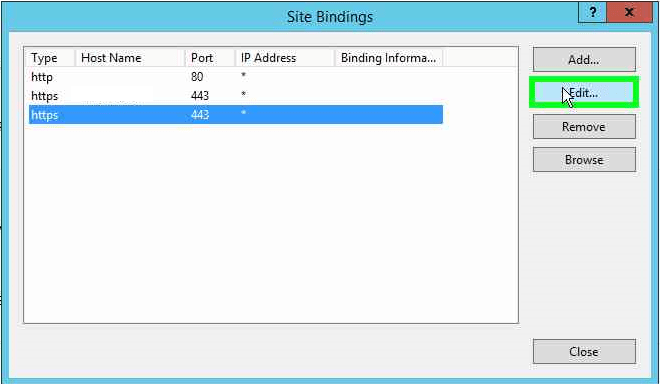
Select the HTTPS binding and click the Edit… button.
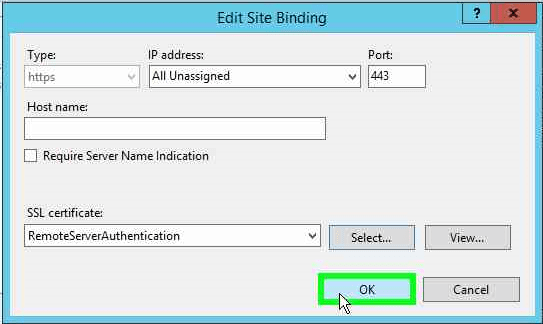
For SSL certificate, it should list the old expired certificate. We want to have it use the new certificate we’ve installed. To do this, click the “Select” button.
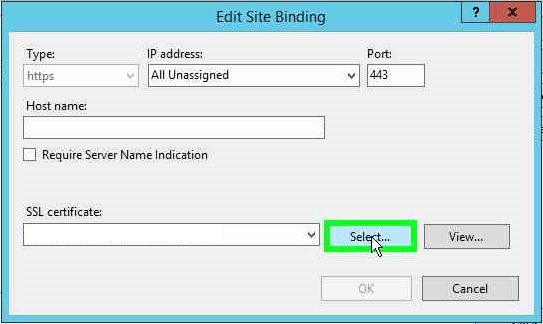
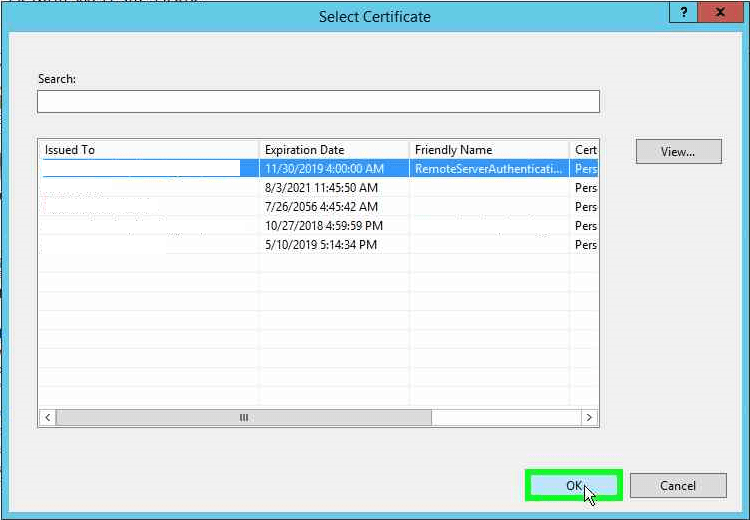
Select the new certificate and click the OK button.
The certificate is now selected for this site binding. Click OK.
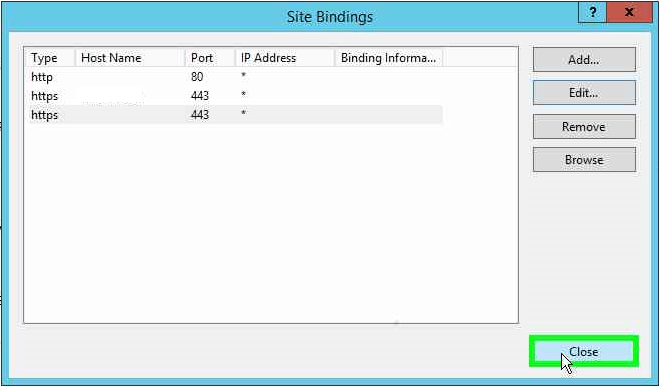
Click the Close button to close the Site Bindings window.
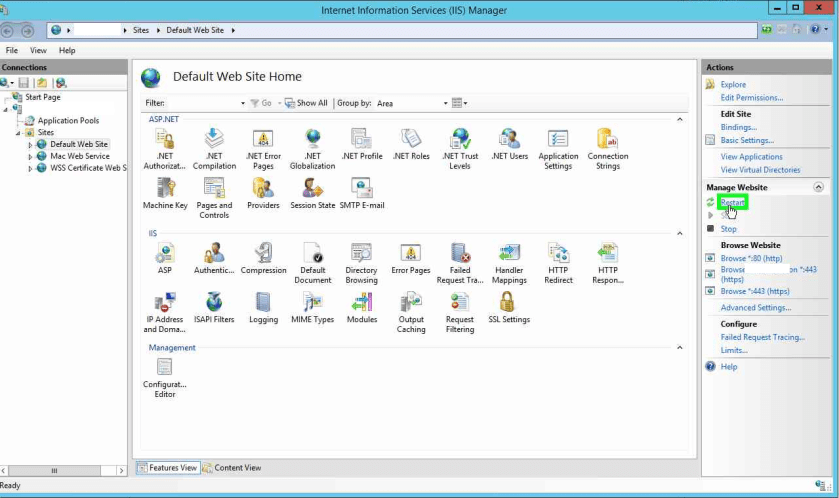
In the right-hand column, under Manage Website, click Restart.
Close the IIS management window and go back to the Routing and Remote Access MMC window. Right click the server name in the left-hand column and click Properties.

Upon clicking the Security tab where we can specify which SSL certificate is used for SSTP VPN, you’ll notice that we get the same error as we did when we tried changing to the new certificate.
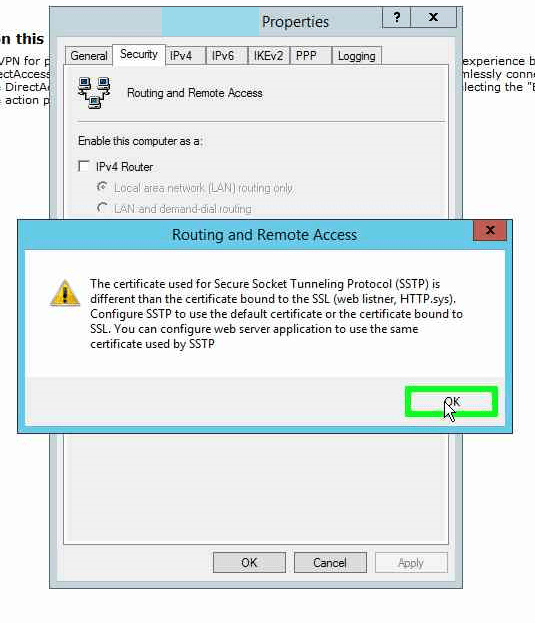
After clicking OK in that dialog box, we will now be able to select our new certificate.

Once the new certificate has been selected, click Apply.
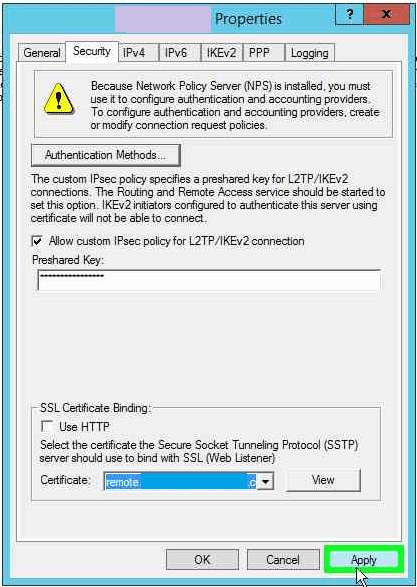
After clicking Apply, the RRAS service will want to restart. Click Yes to let the service restart.
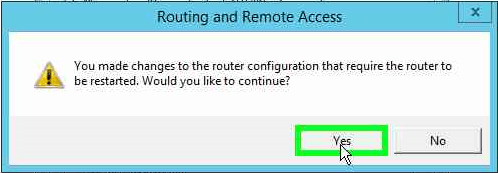
The router will restart.

Once the service restarts, click OK to close the Properties window. 
Now, the new certificate should be applied to RRAS. Test SSTP VPN connection to the server. It should work!
 Nigmenog.com