Error when selecting new SSL certificate for SSTP VPN in RRAS – Web Listener HTTP.sys

The certificate used for Secure Socket Tunneling Protocol (SSTP) is different than the certificate bound to the SSL (web listner, HTTP.sys).

Recently I had to install a new SSL certificate in a server that was an SSTP VPN server. This server is running Windows Server 2012 R2 Essentials. The server was previously configured for Anywhere Access, but we decided to utilize SSTP VPN instead.

I installed the new certificate and private key to the machine’s local certificate store. Upon trying to change the SSL certificate, the RRAS server properties would return the following error:
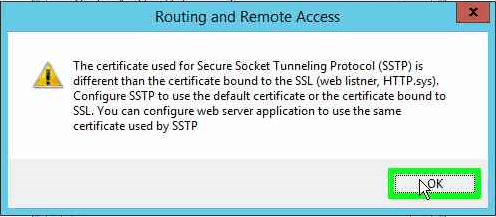
sstp_cert1

“The certificate used for Secure Socket Tunneling Protocol (SSTP) is different than the certificate bound to the SSL (web listner, HTTP.sys). Configure SSTP to use the default certificate or the certificate bound to SSL. You can configure web server application to use the same certificate used by SSTP.”

After poking around, this seems to be happening due to the old expired certificate being assigned to the IIS Default Web Site. We will need to change that assignment and then we’ll be able to change the certificate that RRAS uses for SSTP connections.

To assign the new certificate that we’ve already installed, we’ll need to open IIS management, and in the left-hand column, we’ll need to navigate to the Server name > Sites > Default Web Site, then click Edit Site > Bindings in the right-hand column. sstp_cert2
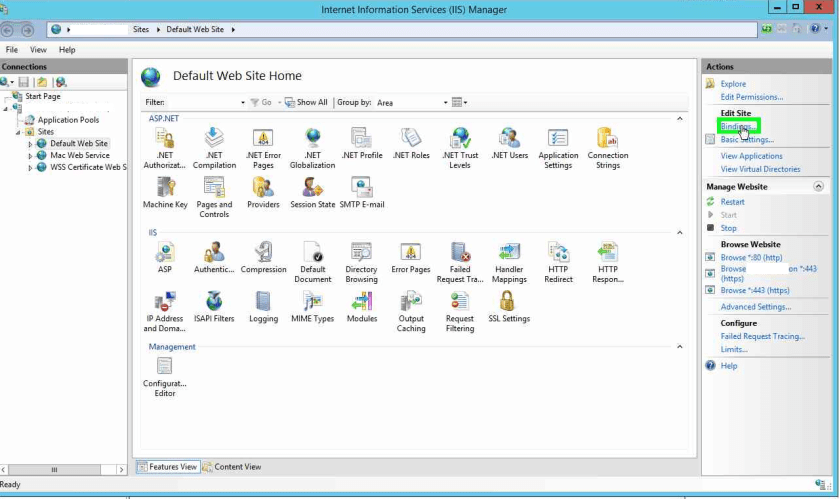
Select the HTTPS binding and click the Edit… button.
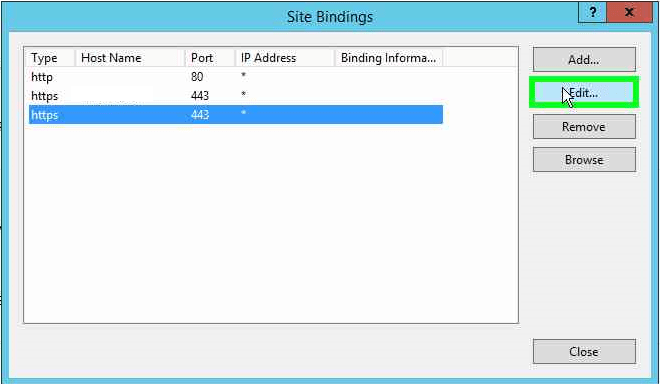
sstp_cert3

For SSL certificate, it should list the old expired certificate. We want to have it use the new certificate we’ve installed. To do this, click the “Select” button.
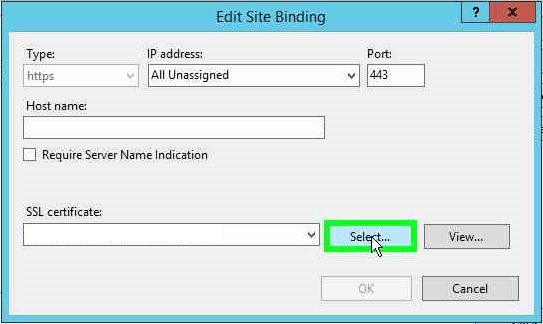
sstp_cert4

Select the new certificate and click the OK button.
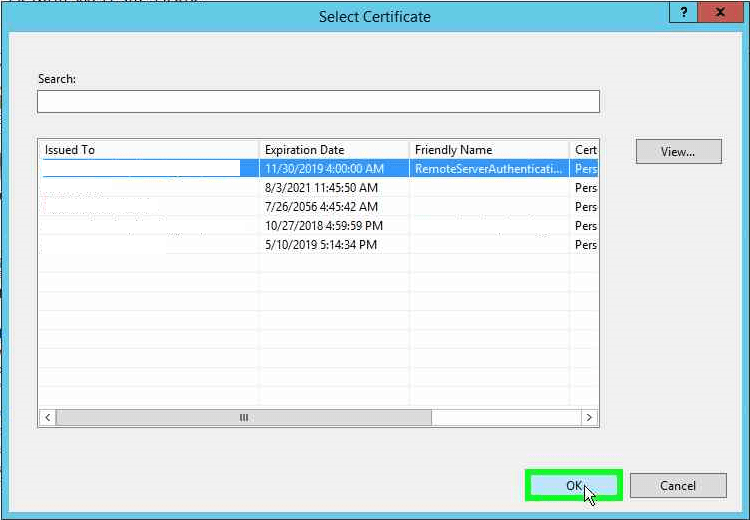
sstp_cert5

The certificate is now selected for this site binding. Click OK.
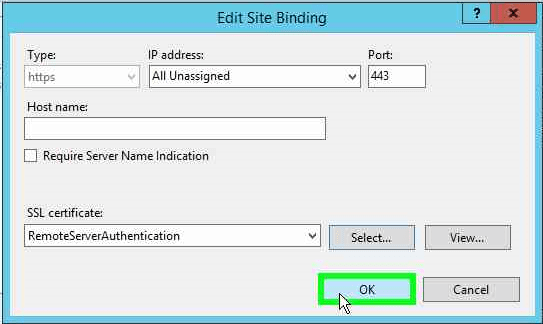
sstp_cert6

Click the Close button to close the Site Bindings window.
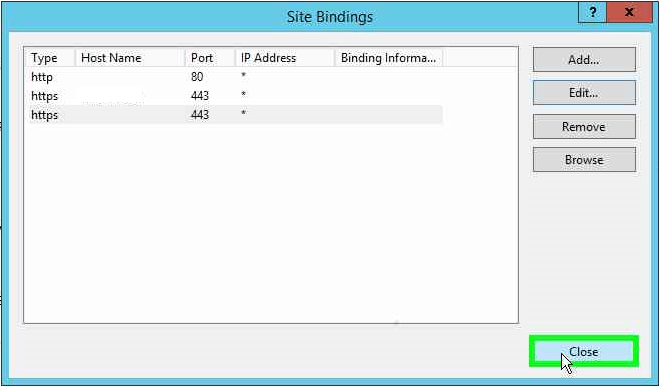
sstp_cert7

In the right-hand column, under Manage Website, click Restart.
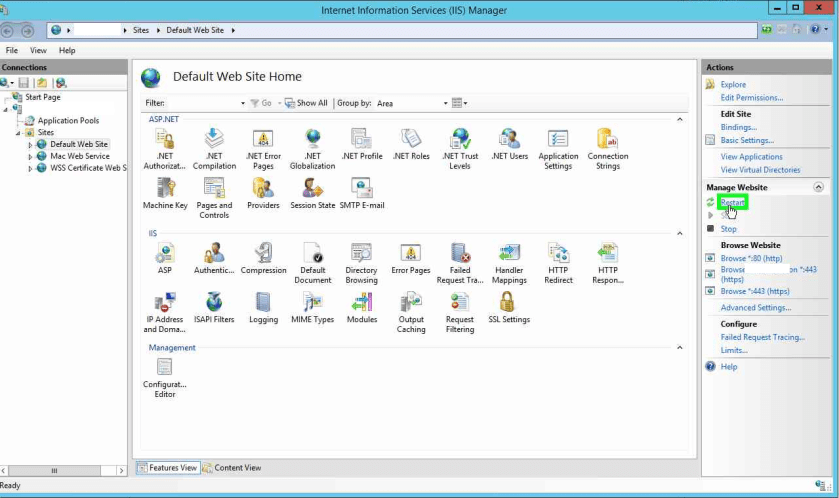
sstp_cert8

Close the IIS management window and go back to the Routing and Remote Access MMC window. Right click the server name in the left-hand column and click Properties.

sstp_cert9

Upon clicking the Security tab where we can specify which SSL certificate is used for SSTP VPN, you’ll notice that we get the same error as we did when we tried changing to the new certificate.
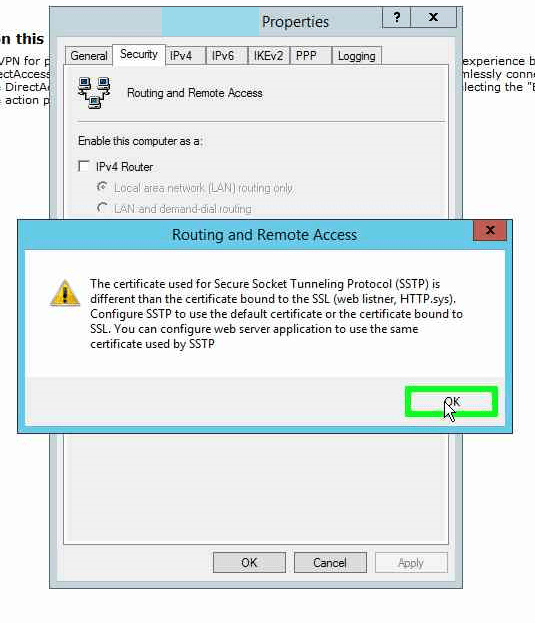
sstp_cert10

After clicking OK in that dialog box, we will now be able to select our new certificate.

sstp_cert11

Once the new certificate has been selected, click Apply.
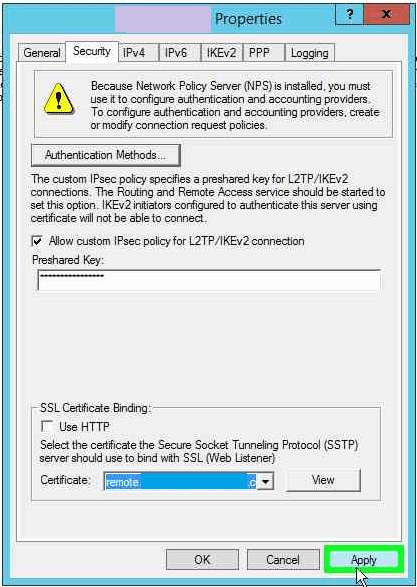
sstp_cert12

After clicking Apply, the RRAS service will want to restart. Click Yes to let the service restart.
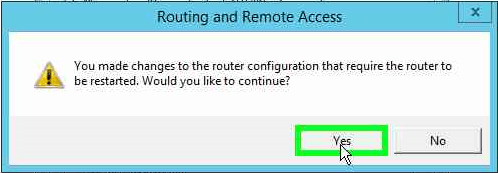
sstp_cert13

The router will restart.

sstp_cert14

Once the service restarts, click OK to close the Properties window. sstp_cert15

Now, the new certificate should be applied to RRAS. Test SSTP VPN connection to the server. It should work!

Windows Server Backup failing to back up one virtual machine – 0x80070050

Windows Server Backup failing with error code 0x80070050

This particular machine has a pretty simple backup setup: a Windows Server 2012 R2 host with two 2012 R2 guest VMs. Integration services are installed on the two VMs and Backup (volume checkpoint) is enabled on both VMs in the integration services settings. Windows Server Backup is installed on the host, and it’s configured to back up the VMs and host system state to an external drive once daily.

This server was not completing backups for one virtual machine. The other virtual machine was backing up properly on this host.

WSBEC1

I took a look at the event logs to find any clues as to why the backup might be failing for this particular VM. One particular event stood out for me.

WSBEC2

Log Name: Microsoft-Windows-Hyper-V-Worker-Admin
Source: Microsoft-Windows-Hyper-V-Worker
Date: 4/17/2018 9:00:43 PM
Event ID: 3280
Task Category: None
Level: Error
Keywords: 
User: NT VIRTUAL MACHINE\94FEE3F0-459E-498D-96E4-BF8272BAC254
Computer: HV01
The description for Event ID 3280 from source Microsoft-Windows-Hyper-V-Worker cannot be found. Either the component that raises this event is not installed on your local computer or the installation is corrupted. You can install or repair the component on the local computer.

If the event originated on another computer, the display information had to be saved with the event.

The following information was included with the event:

DC2
94FEE3F0-459E-498D-96E4-BF8272BAC254
%%2147942480
0x80070050

The locale specific resource for the desired message is not present

Unfortunately, the event log didn’t give much information other than some error codes at the bottom of the event. Looking at the 0x80070050 error, that code means “The file exists”. (to find that, you can either Google the code, or you can use this guide to find out what the code means).

To figure out why “The file exists” matters, we need to understand how the backup process works when a backup is taken of a VM. Very roughly speaking, when a backup is created of a virtual machine, the host creates a checkpoint of the VM. The checkpoint creates a differencing disk (AVHDX) linked to the original VHDX. The parent VHDX is then backed up/copied. Once the backup is completed, the host merges the differencing disk back into the parent VHDX, and eliminates the checkpoint.

When Windows Server backup tries to create a checkpoint of the VM, it creates a differencing disk (AVHDX) which is the name of the original VHDX file with “-AutoRecovery” appended to the end of the file name.

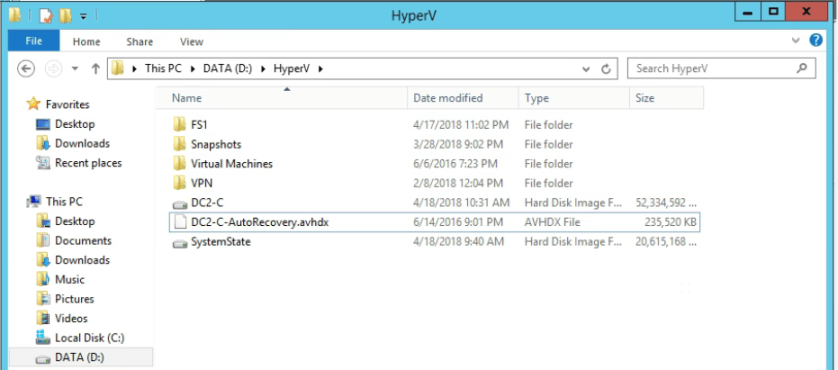
In this particular case, there was an old AVHDX file that existed for that VM already. That must be what’s causing our “The file exists” error!

WSBEC3

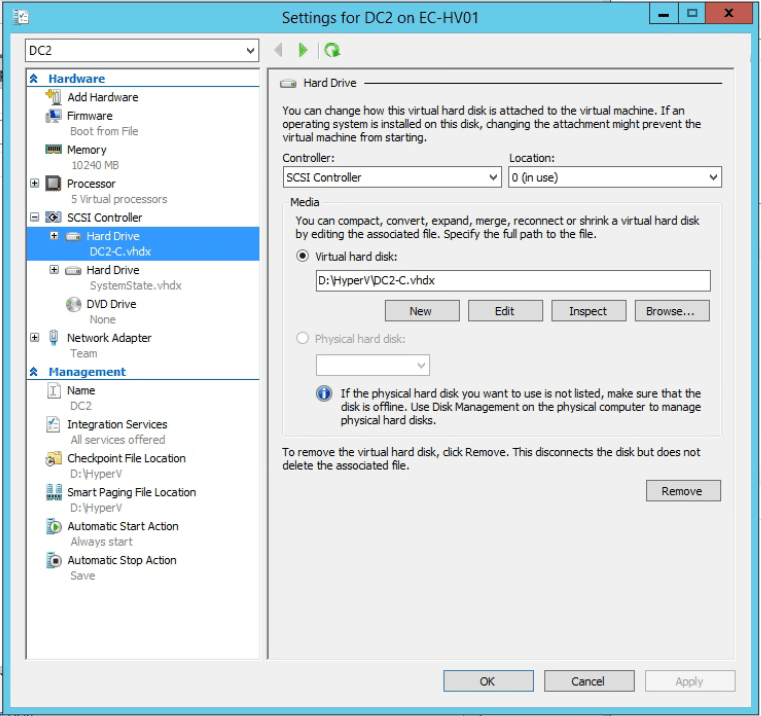
Before we just get rid of it, I went to the HyperV settings of the VM to see if it was in use.

WSBEC4

If the AVHDX were in use, we would see it here instead of the regular VHDX file. The AVHDX file was not in use on this VM, and that AVHDX file had not been modified in a long time, so I deemed it safe to rename/delete it. After I deleted the file, I let the backup schedule run its course.